



 Make us preferred on Google
In this guide, you'll learn how to leverage CoinGecko API and Microsoft Excel to:
-
Use simple formulas like
=CG.PRICE()from the official CoinGecko Excel Add-in to import live cryptocurrency and onchain token prices into Excel spreadsheets (Recommended) -
Pull bulk market data for the top cryptocurrencies and across 600+ coin categories
-
Retrieve historical crypto prices for any coin
-
Use Excel's native Power Query for advanced custom data (like trading pairs and global market cap)
Additionally, we’ll cover how to refresh the data in your Excel workbook, address common errors and how you can overcome rate limits.
Let’s dive in!
Note: This guide is prepared using the Microsoft 365 version of Excel, for Excel users operating on Windows instead of Mac OS. Power Query is included in Excel versions higher than 2010, however only 2016 versions onwards and Microsoft 365 are actively updated by Microsoft. In newer versions, Power Query capabilities are integrated within the Data tab. If this feature is not available in your version of Excel, download it for free on Microsoft.
How to Import Live Crypto Price Data into Excel
The easiest way to import live crypto price data into Excel is by installing the official CoinGecko Excel Add-in and using the =CG.PRICE() formula. This method pulls real-time cryptocurrency, NFT, and on-chain token prices directly into your spreadsheet without requiring complex API connections or manual JSON formatting.
Setting Up the CoinGecko Excel Add-in
First, open Excel, go to Home > Add-ins, search for "CoinGecko", and install the official add-in.

Once installed, go to Home > CoinGecko in the Excel ribbon to open the taskpane sidebar. Enter your CoinGecko API key (a free Demo API key works perfectly) and click Save Settings. A green status dot confirms a valid connection.


Getting Your First Crypto Price
To fetch the current price of Bitcoin, simply type this formula into any cell:
=CG.PRICE("bitcoin")
The current Bitcoin price in USD will appear instantly. Want Ethereum instead? Just swap the ID:
=CG.PRICE("ethereum")

Fetching Onchain DEX Token Prices
For tokens that aren't listed on centralized exchanges (like newly launched memecoins), you can pull prices directly from decentralized exchanges by specifying the network and token contract address.
For example, to get the price of a token on the Ethereum network:
=CG.ONCHAIN("eth", "0xa0b86991c6218b36c1d19d4a2e9eb0ce3606eb48")

You can easily find the contract address of any onchain token by searching for the token on GeckoTerminal and opening its detailed token page. The contract address is displayed directly under the token information panel.

Getting NFT Floor Prices
Tracking NFTs? You can fetch the current floor price (in USD) for any supported collection:
=CG.NFT("pudgy-penguins")
Check out the full list of supported NFT IDs here.

How to Bulk Import a List of Coin Market Data (Including IDs & Symbols)
To bulk import a long list of cryptocurrency market data into Excel, use the =CG.TOP() formula provided by the CoinGecko Add-in. Typing =CG.TOP(10000) into a single cell will instantly generate a clean table containing the IDs, symbols, and market data for up to 10,000 cryptocurrencies.
Because CoinGecko formulas require specific unique identifiers (like bitcoin instead of BTC), having a master directory directly in your workbook is essential.

Note: Ensure you have enough empty cells below and to the right so the array can expand without returning a #SPILL! error.
How to Pull Price Data for Crypto Categories
You can pull price data for specific crypto categories in Excel using the =CG.TOP() formula combined with a category parameter. For example, entering =CG.TOP(5000, "real-world-assets-rwa") instantly imports a ranked list of the top 5,000 Real world asset (RWAs) cryptocurrencies by market cap.
Find all available Category IDs here.

How to Get Historical Crypto Prices into Excel
You can get historical crypto prices, with up to 10+ years of historical data going back to 2014, in Excel using the =CG.HISTORY() add-in formula or by using Excel's Power Query feature to download complete multi-year historical datasets from CoinGecko API’s Coin Historical Chart Data by ID endpoint.
For most users, the Excel add-in is the fastest and most practical way to pull historical data. Instead of typing the formula manually for every single day, you can use Excel's native cell referencing to automate the process. However, if you are building heavy quantitative models that require thousands of days of historical data, including volume and market cap, using Power Query to download bulk data directly from the API is the recommended advanced alternative.
Pulling Multi-Day Historical Data with the CoinGecko Add-in (Recommended)
To quickly pull historical price of a coin for a singular day, use the formula below:
=CG.HISTORY("bitcoin", "2024-12-31")
This returns the historical USD price for that specific date.

To pull a sequence of historical prices instead, list your target dates in a single column – for example, in Column A.
In the adjacent column, type the =CG.HISTORY() formula and reference the first date cell:
=CG.HISTORY("bitcoin", A2)
Once the first price loads, simply click the bottom-right corner of the cell and drag the formula down your list. Excel will automatically fetch the historical USD price for every date in your column.
Pull Bulk Historical Data with Power Query (Advanced)
If you need massive historical datasets (like years of daily and hourly prices batched into a single API call, along with total volume and market cap), you will want to use Excel's built-in Power Query feature instead.
In this example, we will be pulling out the maximum historical data for Bitcoin (BTC). Navigate to the API documentation playground, find the /coins/{id}/market_chart endpoint, fill in the following parameters and execute the query.
- id: bitcoin
- vs_currency: usd
- days: max
- interval: daily
- precision: full

Once again, copy and paste the Request URL into Excel’s Power Query Editor. Similar to previous steps, convert the source data into a table. However, this time instead of expanding the list of values to new rows, select ‘Extract Values’ instead.

A dialog box appears, select ‘Comma’ as the delimiter and click on the ‘OK’ button.

Two strings of values are now extracted within the Value column, separated by the comma delimiter. The first value in each cell is the timestamp in the UNIX epoch format. The second value is Bitcoin’s price in USD.

In order to have timestamp in one column and price in another, right click on the ‘Value’ header cell and select Split Column > By Delimiter.

Columns are now split. In this example we’ve renamed the columns accordingly for clarity.

Close and load the data. In your actual workbook, you’ll now see a table with the following rows: Name (prices, market cap and total volume), Unix TImestamp and Price USD.
Convert the UNIX epoch timestamp to a human-readable date with the formula ‘=(CELL/86400)+DATE(1970,1,1)’.

Since data for price, market cap and total volume are appended in the same table, create a pivot table using the current data set to show a clearer view of daily historical crypto price, market cap and volume data.

💡 Pro-tip: Depending on your needs, you can get historical data of cryptocurrencies with any of these endpoints:
- /coins/{id}/history: Get the coin price and market data on a specific day in the past (00:00 UTC).
- /coins/{id}/market_chart: Get the historical coin price and market data, X days before today.
- /coins/{id}/market_chart/range: Get historical coin price and market data for a specified date range.
- /coins/{id}/contract/{contract_address}/market_chart: Get historical coin price and market data with a contract address.
- /coins/{id}/contract/{contract_address}/market_chart: Get historical coin price and market data with a contract address for a specified date range.
Using Power Query to Import Crypto Data into Excel (Advanced)
While the CoinGecko add-in handles most use cases seamlessly, some advanced scenarios require direct API calls. For example, fetching trending coins, trading pairs, or global market cap charts. For these, you'll want to use Excel's native "Data from Web" feature alongside Power Query.
How to Import Trending Crypto Price Data into Excel
The quickest way to fetch trending crypto price data into Excel is using CoinGecko API’s Trending Search endpoint, through Excel’s Data from Web feature. This will import price data on the top 7 trending coins on CoinGecko, as searched by users in the last 24 hours.

Similarly, copy the Request URL and follow the steps in the previous section to connect the endpoint to Excel’s Power Query Editor. In this example, the Request URL is: https://api.coingecko.com/api/v3/search/trending.

Upon closing and loading the table, you’ll find the top 7 trending cryptocurrencies and its respective data in the spreadsheet.

Format the data based on your preferences. Now you can easily reference the top 7 trending cryptocurrencies on CoinGecko, directly on Excel!

How to Get Data on Cryptocurrency Trading Pairs in Excel
Get all trading pairs (tickers) for a specified cryptocurrency on CoinGecko, with the Coin Tickers by ID endpoint.
Referencing our coins list in the first section of this guide, we identify that the id for Ethereum is ‘ethereum’.

On the API documentation playground, fill in the following parameters:
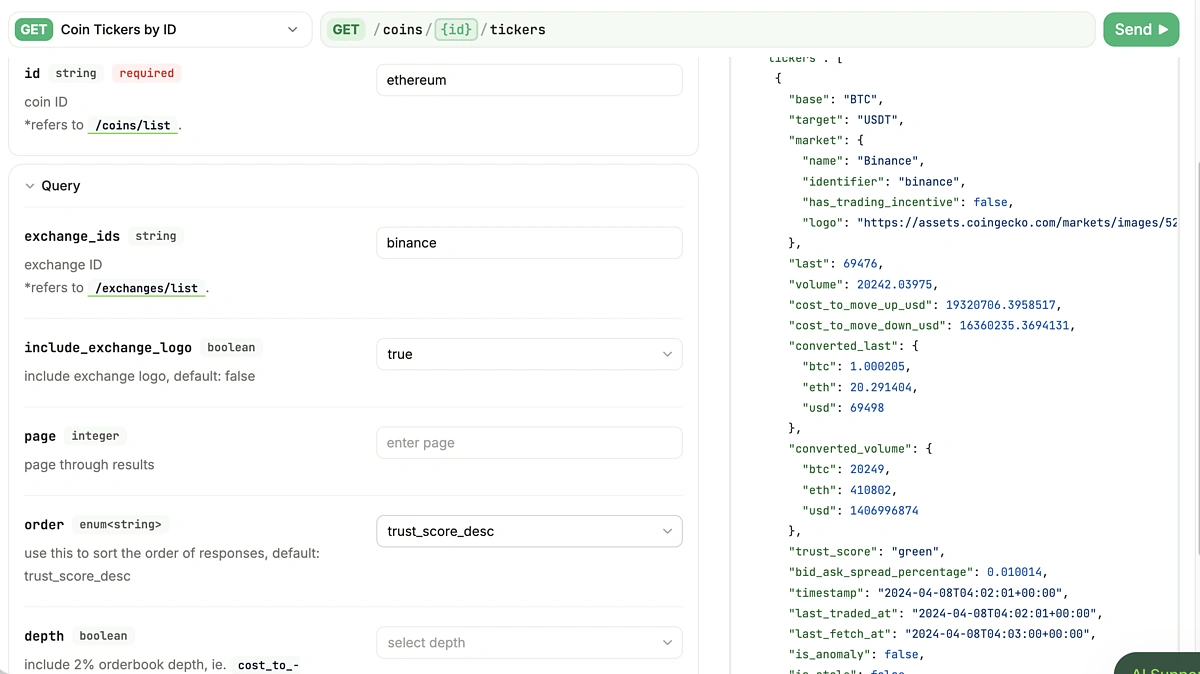
Retrieve the Request URL once again, which should be: https://api.coingecko.com/api/v3/coins/ethereum/tickers?include_exchange_logo=true&order=trust_score_desc
Connect it using Excel’s Data from Web feature and you’ll see a table with just one set of data. Double click on ‘List’ to expand it into a list of records.

As every record contains a nested data set for each trading pair on Ethereum, you will need to convert this into a table. Click on the ‘List’ column header, and then select the ‘To Table’ button at the top left corner.

Expand the columns accordingly, checking the data points you’d like to retrieve.

After expanding the columns in the main table, you will find that some columns (like market, converted_last and converted_volume etc.) may additionally contain nested data. Depending on preference, you can expand this accordingly or keep it as is. 
When expanding converted_last and converted_volume, uncheck ‘eth’ since this is already our base currency.
After expanding all data points, close and load the Power Query Editor - you have successfully imported all ETH cryptocurrency pairs into your spreadsheet!

What Are Cryptocurrency Trading Pairs?
Trading pairs, also known as cryptocurrency pairs, are assets that can be traded for each other or swapped, on an exchange. A trading pair is used to compare the value of one cryptocurrency against another – essentially, how much of the base currency is needed to buy one unit of the quoted cryptocurrency.
How to Fetch Total Crypto Market Cap Data in Excel
You can call the Crypto Global Market Data endpoint in CoinGecko API to get real-time total crypto market cap data in Excel. For historical global market cap and volume data, use the Global Market Chart endpoint.
In this demo, we’ll be using the latter – note that this is accessible via the paid API plan.
As indicated in the documentation, data granularity for the ‘days’ parameter is automatically set based on the number of days.
- 1 day from now = data granularity is at hourly intervals
- 2 days and above = data granularity is at daily intervals, at 00:00 UTC
To pull the last 30 days of data, let’s specify the parameters in the Request URL where ‘days=30’.

Convert the data to table and expand the values accordingly.
As we’ll only be looking at retrieving market cap data, let’s remove the volume column to avoid confusion. The Power Query Editor should appear as such:

Extract the values and select a comma delimiter for concatenating values.

Concatenated values are now shown in the ‘market_cap’ column. The first value is the timestamp in UNIX epoch format, and the second value is the total market cap on its corresponding day.

Next, split the ‘market_cap’ column by the comma delimiter. You will now have timestamp values in the middle column, and market cap values in the right-most column.

Rename the columns for clarity. We’ll also remove the first column ‘Name’.

Finally, save and close the Power Query Editor, and find your clean data in your Excel workbook.
Insert a new column to convert the UNIX epoch timestamp to a human-readable format, with the formula ‘=(CELL/86400)+DATE(1970,1,1)’. Format other columns accordingly.

💡 Pro-tip: To change the number of days of data being pulled, head to Data > Query & Connections and update the number of days within the Request URL.

How to Pull Price Data for Trending Crypto Categories
To get live data for trending crypto categories, use the CoinGecko API endpoint /categories. This will import market cap, volume and respective 24 hour percentage change, as well as the top 3 coins, for each category – this can be useful to see which category or ecosystem is gaining traction.
Similar to previous steps, run the Request URL in Excel’s Power Query Editor. Convert the data into a table and expand the columns accordingly. Note to extract the values for the nested List in the ‘top_3_coins’ column, and splitting its columns thereafter.

Format the cells accordingly. With that, you now have real-time data of trending crypto categories in your Excel workbook!

Refreshing the Data
As with most databases, you can choose to refresh the data manually or automatically.
Refreshing CoinGecko Excel Add-in Formulas
If you are using the CoinGecko Excel Add-in (=CG formulas), simply open the CoinGecko taskpane from your Excel ribbon and click Refresh All Data. This clears the cache and forces all formulas in the workbook to recalculate with fresh live data from the API.

Refreshing Power Query Connections
Power Query provides two data refresh methods and offers an advantage over the Excel add-in by allowing automatic periodic refreshes instead of just manual ones.
Manual Refresh
To refresh all connected queries in the worksheet, go to Data > Refresh All (orange) in your toolbar. To manually refresh specific queries, go to Data > Queries & Connections (blue).

A right panel will appear, click on the Refresh icon to refresh the corresponding query. Doing this can conserve the number of API calls made, especially if you are on the Public or lower-tiered API plan.

Automatic Refresh
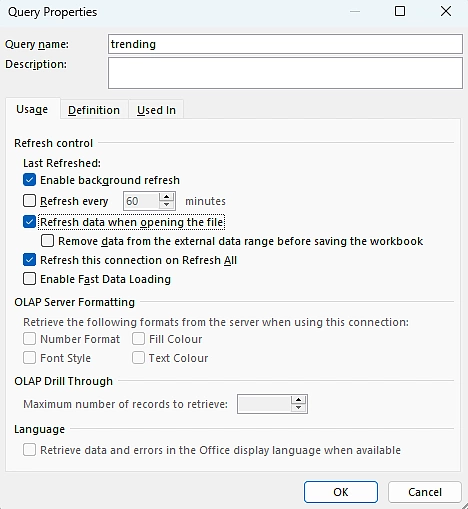
To set up automatic refresh, navigate to Data > Queries & Connections. Right click and select Properties.

This prompts the following dialog box, where you can toggle your preferred refresh frequency:
- Enable background refresh
- Refresh every X minute
- Refresh data when opening the file
- Refresh this connection on Refresh All
This will need to be set up for each query individually, as there is no other way to adjust the settings globally.
View Last Updated Status
You can view when the query was last updated by hovering on each query.

Troubleshooting Tips
If you encounter issues while using the CoinGecko Excel add-in, here are several frequent errors and their respective solutions.
#NAME? Error in Formulas
If your cells display #NAME?, ensure the CoinGecko Excel Add-in is installed and loaded. The CG namespace is only available when the add-in is active.
#SPILL! Error in Formulas
If you use =CG.TOP() and see a #SPILL! error, it means Excel doesn't have enough empty space to expand the table. Clear the cells below and to the right of your formula to fix this.
Add-in Error: Invalid API Key
Open the CoinGecko taskpane, double-check that you've entered a valid API key without any trailing spaces, and click Save.
For advanced users using Power Query, here are the common errors and how to overcome them.
API Key Error
You may run into the following error when using the Advanced Data from Web feature.

Perform relevant checks to verify that your Paid API key and header names are in order. If the error persists, there may simply be a clash among the multiple queries in the worksheet. To solve this, ensure that your API key is applicable on the main root URL https://pro-api.coingecko.com/api/v3, instead of https://pro-api.coingecko.com/api/v3/search/trending for instance.

Getting Rate Limited
Another issue you may encounter is getting rate limited. While there are no error prompts, you may experience timeout or a perpetually connecting dialog box.

Signing up for our Paid CoinGecko API can solve this issue – and enable you to focus on analyzing the data rather than troubleshooting sheet errors.
If a consideration for subscribing is running into unexpected overages, setting up a call consumption alert via your developer dashboard can help avoid overages.
Advanced traders who want access to more API endpoints, historical prices and avoid getting rate limited, may consider subscribing to our Analyst API plan. The CoinGecko API currently has 70+ endpoints, tracks 20M+ coins across 1,700+ exchanges on 250 networks, and serves billions of API calls each month.

Looking for further API resources for Excel? Check out this tutorial that covers how to import crypto and stock prices into Excel.










 Or check it out in the app stores