





 Make us preferred on Google
Google Sheets doesn't natively support JSON data, which means it can be tricky to fetch real-time crypto price data into your spreadsheet. The good news? There are now multiple ways to pull crypto data into Google Sheets, ranging from simple one-formula solutions to advanced API integrations.
In this guide, you'll learn how to:
- Use the official CoinGecko for Google Sheets add-on with a simple
=COINGECKO()formula (Recommended) - Import live crypto prices for specific cryptocurrencies
- Retrieve historical crypto prices for any coin
- Get NFT floor prices and onchain DEX token data
- Use a third-party API connector for advanced custom queries
- Fetch trending category data and total crypto market cap
- Use the built-in Google Finance formula (limited to BTC and ETH)
We'll also cover how to refresh data in your spreadsheet and address potential rate limitations.
Let's jump in!

How to Import Live Crypto Price Data into Google Sheets
The easiest way to import live crypto prices into Google Sheets is with the official CoinGecko for Google Sheets add-on. With a single formula, you can pull real-time prices for over 20 million tokens across 250+ networks.
Here's what makes it different from other methods:
- Works with virtually all cryptocurrencies, not just BTC and ETH
- Supports onchain DEX prices from GeckoTerminal
- Includes NFT floor price data
- Offers historical price lookups
- Can batch pull up to 1,000 tokens with one formula
- Privacy-first design that doesn't access your Google Drive or other spreadsheets
Setting Up the CoinGecko Add-on
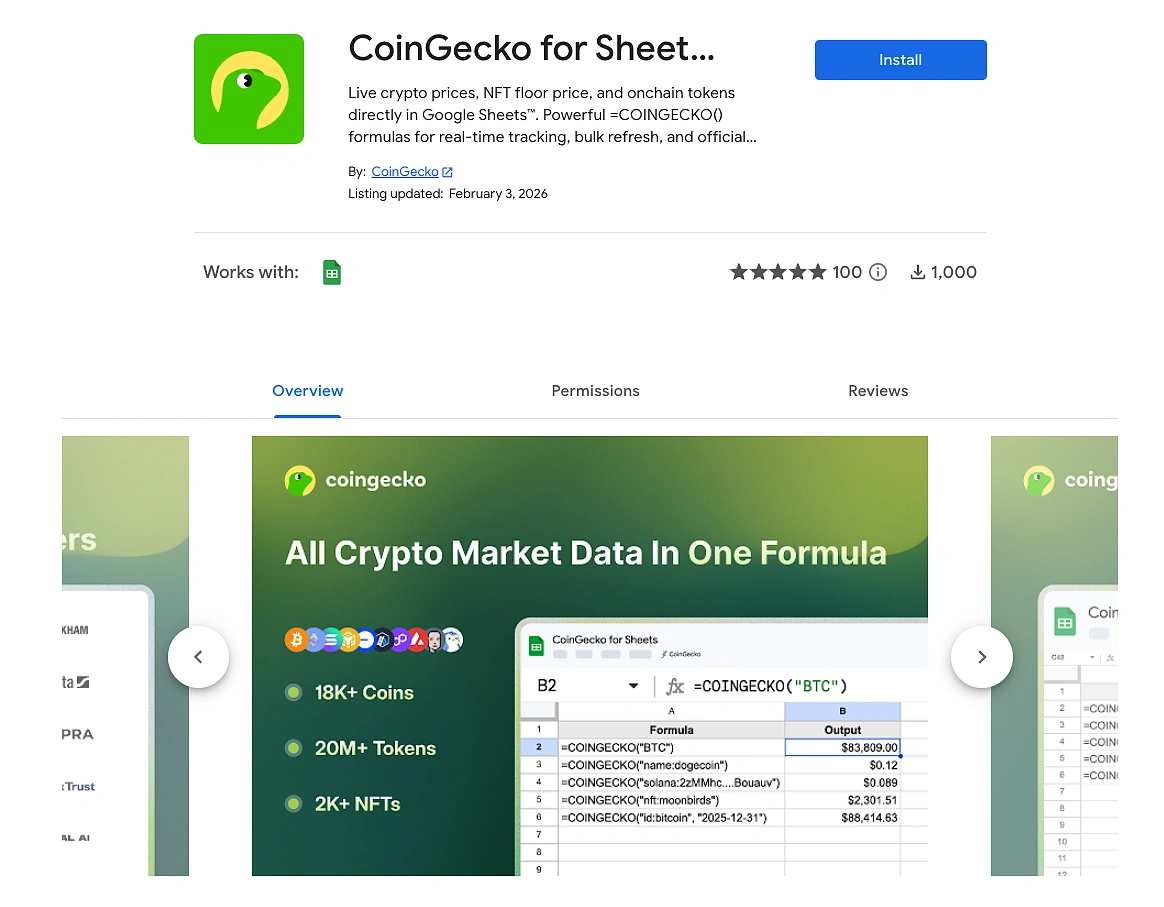
First, head to the CoinGecko for Sheets page on Google Workspace Marketplace and click Install.
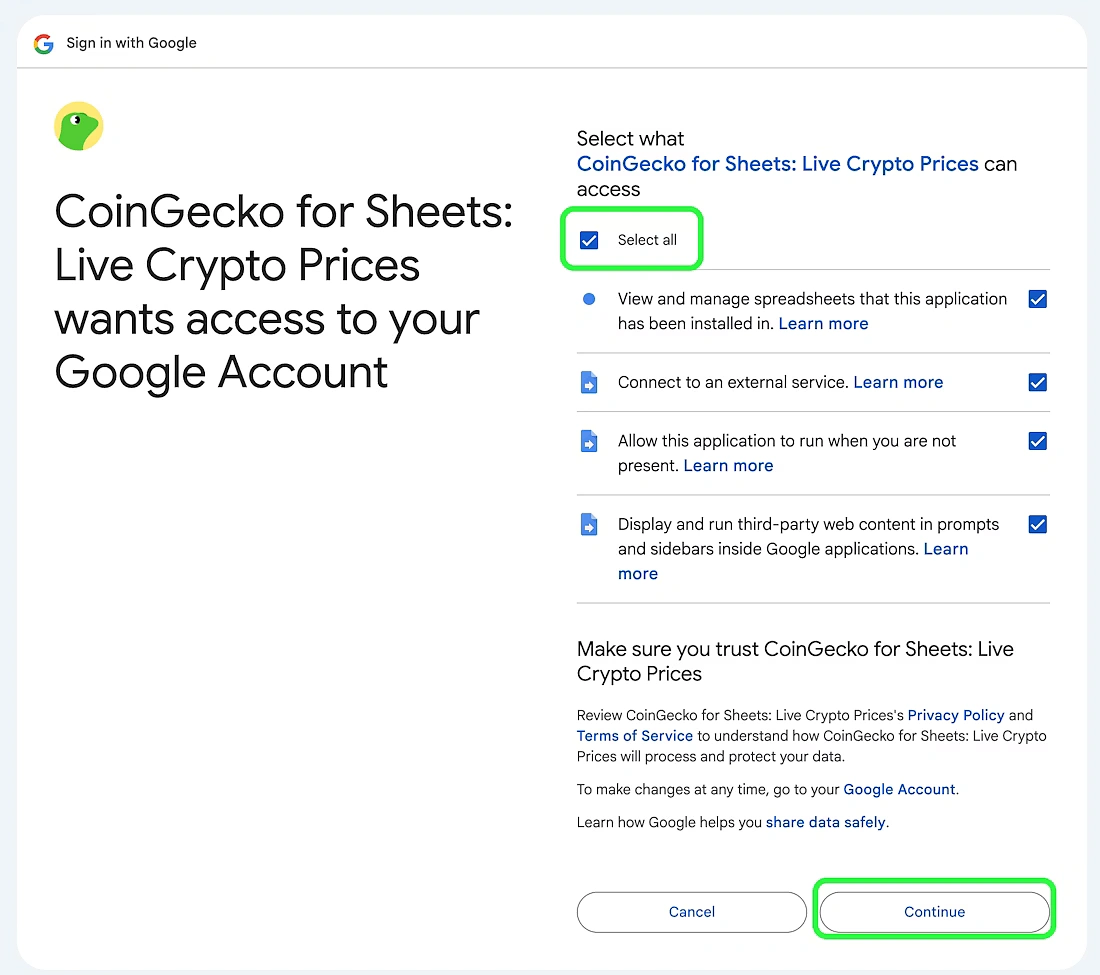
During authorization, check Select all to grant the required permissions. Don't worry - CoinGecko follows the principle of "least privilege" and doesn't access your email, personal data, or other spreadsheets. These permissions simply allow the add-on to communicate with our API and write data to your current sheet.
Once installed, open any Google Sheet and go to Extensions > CoinGecko > Settings & API Key.
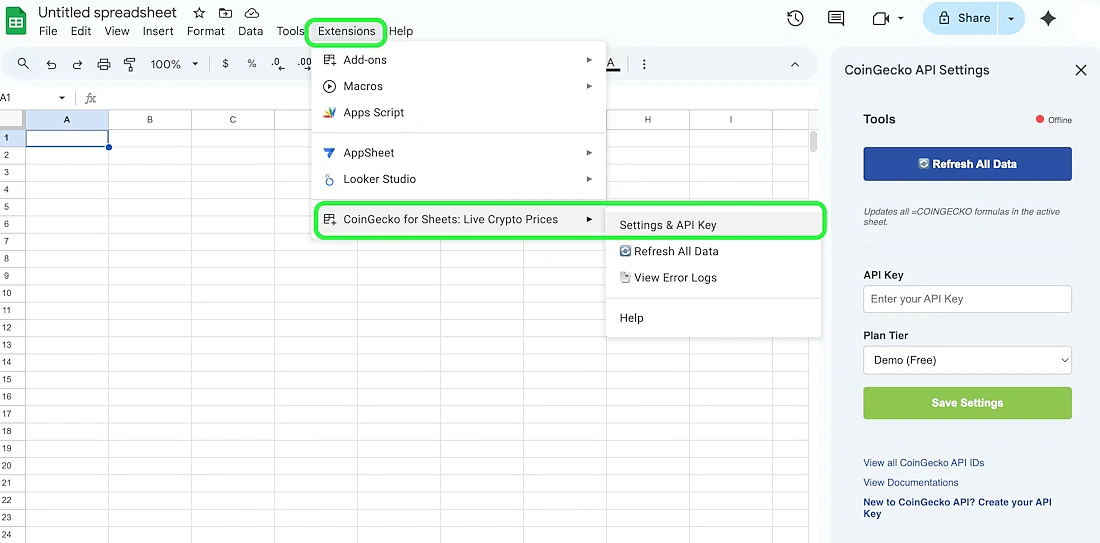
To use the CoinGecko for Sheets add-on, you will need at least a Demo API key. If you don't have one, read this guide on how to get your free Demo API key.
Enter your CoinGecko API Key, select your plan (Demo or Pro), and click Save Settings.
Getting Your First Crypto Price
Now for the fun part. To fetch the current price of Bitcoin, simply type this formula into any cell:
=COINGECKO("BTC")
That's it. The current Bitcoin price in USD will appear in your cell.
Want Ethereum instead? Just swap the ticker:
=COINGECKO("ETH")
You can use any ticker symbol. Try =COINGECKO("SOL") for Solana, =COINGECKO("DOGE") for Dogecoin, or =COINGECKO("MATIC") for Polygon.

The formula uses "Smart Routing" to automatically find the right token. If multiple coins share the same ticker, it prioritizes the one with the largest market cap. If a symbol isn't found on CoinGecko, it automatically searches GeckoTerminal for the most liquid onchain pool.
Using Coin IDs for Precise Results
Sometimes different tokens share the same ticker symbol. To avoid confusion, you can use CoinGecko's unique coin ID instead:
=COINGECKO("id:bitcoin")
=COINGECKO("id:ethereum")
=COINGECKO("id:solana")
This ensures you always get exactly the token you're looking for, even if another coin uses the same symbol.

Fetching Onchain DEX Token Prices
For tokens that aren't listed on centralized exchanges (think newly launched memecoins or DeFi tokens), you can pull prices directly from decentralized exchanges. Just specify the network and token contract address. Example:
- For the PENGU token on Solana network, the formula is
=COINGECKO("solana:2zMMhcVQEXDtdE6vsFS7S7D5oUodfJHE8vd1gnBouauv") - For the FLOKI token on BNB network, the formula is
=COINGECKO("bsc:0xfb5b838b6cfeedc2873ab27866079ac55363d37e")
This is particularly useful for tracking tokens only available on DEXs. Find all supported network IDs here.
![CoinGecko for Sheets formula =COINGECKO("[onchain_network_id]:[token_address]") to easily fetch and import real-time onchain dex price data into Google Sheets](https://assets.coingecko.com/coingecko/public/ckeditor_assets/pictures/102134714/content_Screenshot_2026-02-06_at_10.51.49%E2%80%AFPM.webp)
You can easily find the contract address of any onchain token by searching for the token on GeckoTerminal and opening its detailed token page. The contract address is displayed directly under the token information panel.

Getting NFT Floor Prices
Tracking NFTs? You can fetch floor prices for any collection:
=COINGECKO("nft:pudgy-penguins")
=COINGECKO("nft:bored-ape-yacht-club")
Check out the full list of supported NFT IDs here.

Pulling Multiple Cryptocurrencies at Once
One of the most powerful features is bulk data retrieval. Want price and market data for the top 100 cryptocurrencies? Use the formula:
=COINGECKO("top:100")
This returns a full table with coin name, price, market cap, 24h volume, and price changes - all from a single formula. You can batch pull up to 1,000 crypto assets this way.

You can also filter by category. For example, to get the top 50 meme tokens:
=COINGECKO("top:50:meme-token")
Or the top 20 AI-related tokens:
=COINGECKO("top:20:artificial-intelligence")
Find all available Category IDs here.
![CoinGecko for Sheets formula =COINGECKO("top:[number]:[category_id]") to easily bulk fetch and import up to 1000 cryptocurrency price data of a specific crypto category and create a crypto price feed in Google Sheets](https://assets.coingecko.com/coingecko/public/ckeditor_assets/pictures/102134717/content_Screenshot_2026-02-06_at_10.57.38%E2%80%AFPM.webp)
How to Pull Historical Crypto Price Data into Google Sheets
Traders often need historical prices for analysis and backtesting strategies. There are two ways to get this data: the CoinGecko add-on for quick lookups, or a third-party API connector for more granular historical data.
Quick Historical Lookups with the CoinGecko Add-on
For simple historical price checks, the CoinGecko formula works great. Just add a date parameter:
=COINGECKO("id:bitcoin", "2024-12-31")
=COINGECKO("id:ethereum", "2024-06-15")
This returns the daily closing price (00:00 UTC) for that specific date. It's perfect for checking what a coin was worth on a particular day.
![CoinGecko for Sheets formula =COINGECKO("id:[coin_id]", "[YYYY-MM-DD]") to easily fetch and import historical cryptocurrency price data into Google Sheets](https://assets.coingecko.com/coingecko/public/ckeditor_assets/pictures/102134718/content_Screenshot_2026-02-06_at_11.01.42%E2%80%AFPM.webp)
Advanced Historical Data with API Connector
If you need comprehensive historical datasets (like 14 days of hourly data, or 10 years of daily prices with volume and market cap), you'll want to use a third-party API connector like API Connector by Mixed Analytics.
The CoinGecko API's /coins/{id}/market_chart endpoint gives you access to up to 10+ years of historical data going back to April 2013. Here's how to set it up.
First, install the API Connector add-on from Google's Marketplace. Once installed, create a new Google Sheet, go to Extensions > API Connector > Open.

In the panel that slides out, click Create and select Custom under Application. You'll use this for historical data queries.
Navigate to the CoinGecko API documentation and find the /coins/{id}/market_chart endpoint. In this example, we'll query 14 days of historical Bitcoin price data with daily granularity.
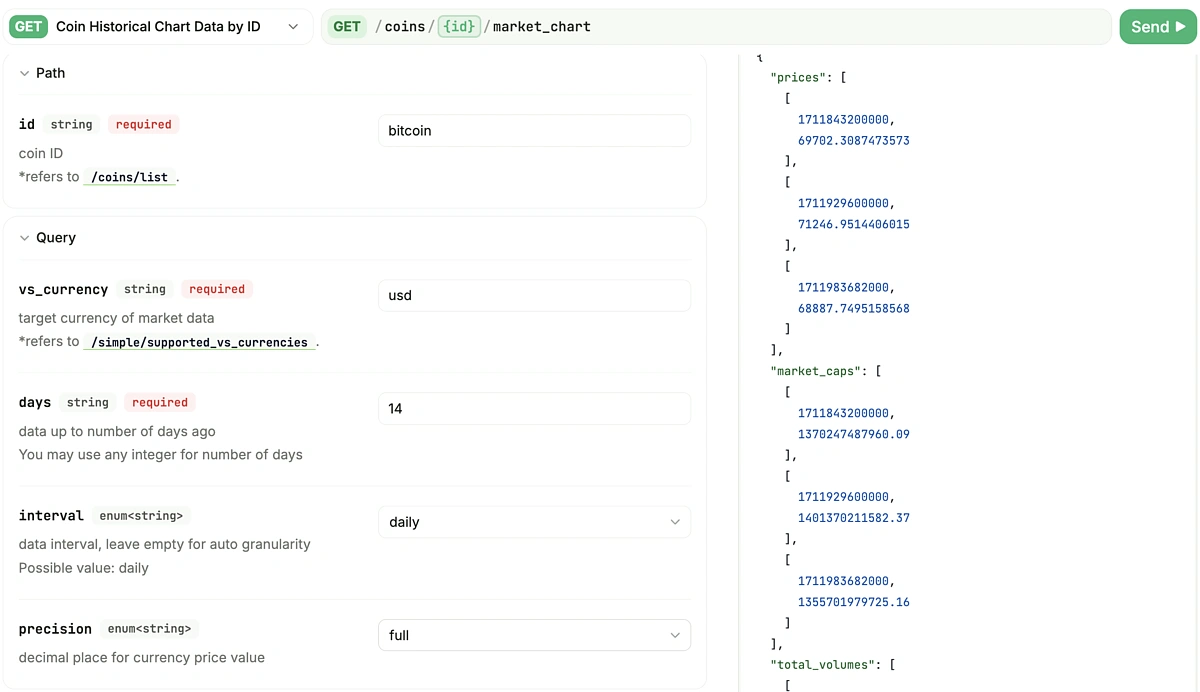
Fill in the parameters and copy the Request URL. If you're using the free Demo API key, your URL will look like this:
https://api.coingecko.com/api/v3/coins/bitcoin/market_chart?vs_currency=usd&days=14&interval=daily&precision=full&x_cg_demo_api_key=YOUR_API_KEY
For Paid API users, use the pro-api root URL:
https://pro-api.coingecko.com/api/v3/coins/bitcoin/market_chart?vs_currency=usd&days=14&interval=daily&precision=full&x_cg_pro_api_key=YOUR_API_KEY
Paste this into the Request URL field in API Connector. Before running, expand Output options and select grid as the report style to arrange the data in a clean table format.

Run the request and your historical data will populate in the sheet:

Each cell returns two values: a UNIX timestamp and the price/market cap/volume value:

To clean this up, use the following formula to remove brackets and split values by the comma:
=SPLIT(SUBSTITUTE(SUBSTITUTE($A3,"[",""),"]",""), ",")

To convert UNIX timestamps to readable dates, use: =EPOCHTODATE(F3,2)

Your final cleaned dataset will look like this:

How Far Back Does the Historical Data Go?
You can access 10+ years of historical crypto price data since April 2013 with the /coins/{id}/market_chart endpoint. To get the full range, set the days parameter to max.
The data granularity depends on the time range you request:
- Within 1 day from now = 5-minute intervals
- 1-90 days from now = hourly intervals
- More than 90 days from now = daily intervals (00:00 UTC)

Advanced: Using a Third-Party API Connector for Custom Queries
While the CoinGecko add-on handles most use cases, some advanced scenarios require direct API calls. For example, fetching trending coins, detailed category market data, or global market cap charts. For these, you'll want to use a third-party API connector.
The API Connector by Mixed Analytics is one of the most popular options. CoinGecko users get 30% off the lifetime subscription with the code "COINGECKO".
Setting Up API Connector
Install the add-on from Google's Marketplace. In your Google Sheet, go to Extensions > API Connector > Open.

Click Create and you'll see two pre-built CoinGecko connections: CoinGecko (for Demo API) and CoinGecko Pro (for paid plans). Select the one matching your API key type.
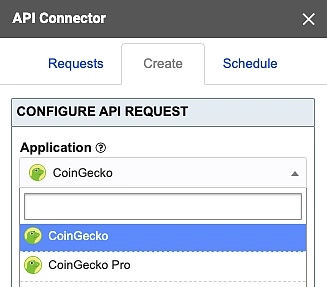
Enter your API key under Authorization.
For endpoints not pre-built into API Connector, select Custom under Application. You'll configure these fields:
- Request URL
- Output settings > Destination sheet and cell
- Output options
- Request name

Importing a List of Coin IDs and Symbols
The /coins/list endpoint returns all coin IDs on CoinGecko. This is useful as a reference when building other queries.
In API Connector, select the /coins/list endpoint. Toggle include_platform to true if you want contract addresses included.
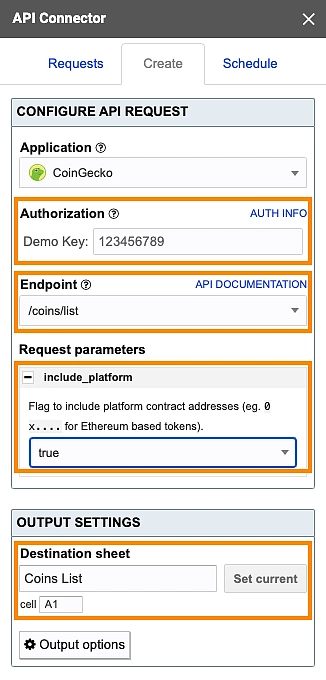
Specify where you want the data and hit Run:
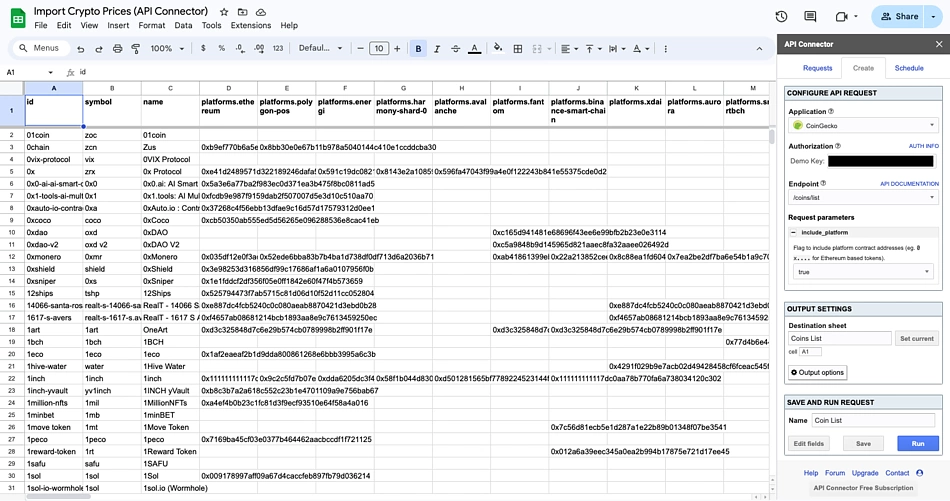
Fetching Live Prices via /simple/price
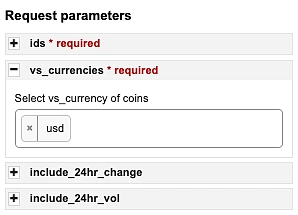
The /simple/price endpoint fetches real-time prices for multiple coins in one API call. Select it in API Connector and fill in the parameters.
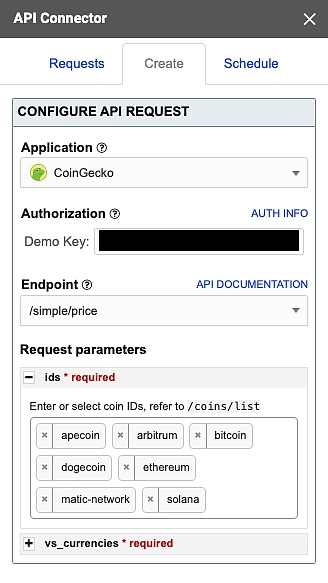
Specify the output currency in vs_currencies. For this example, we'll retrieve USD prices for Apecoin, Arbitrum, Bitcoin, Dogecoin, Ethereum, Polygon, and Solana:
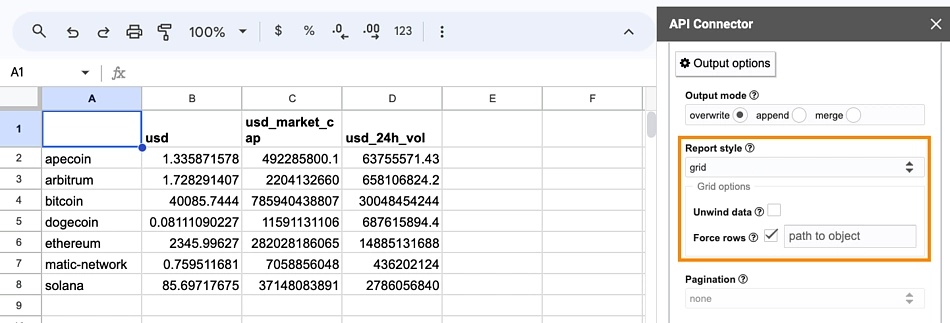
Toggle the report style to grid and check force rows for a clean table output:
Fetching Crypto Prices by Trending Categories
To identify all categories on CoinGecko, use the /coins/categories endpoint. Input this Request URL:
The full list of categories with market cap data will populate:

Format the logo columns with =IMAGE([CELL],1) to display token logos:

Sort by 24-hour market cap change to find what's trending. In this example, TRY Stablecoin, Kommunitas Launchpad tokens, and Discord Bots are trending:

To pull price data for all coins in a specific category (like Discord Bots), first identify the category ID:

Then use the /coins/markets endpoint with the category parameter. Navigate to the API documentation and input discord-bots in the category field:
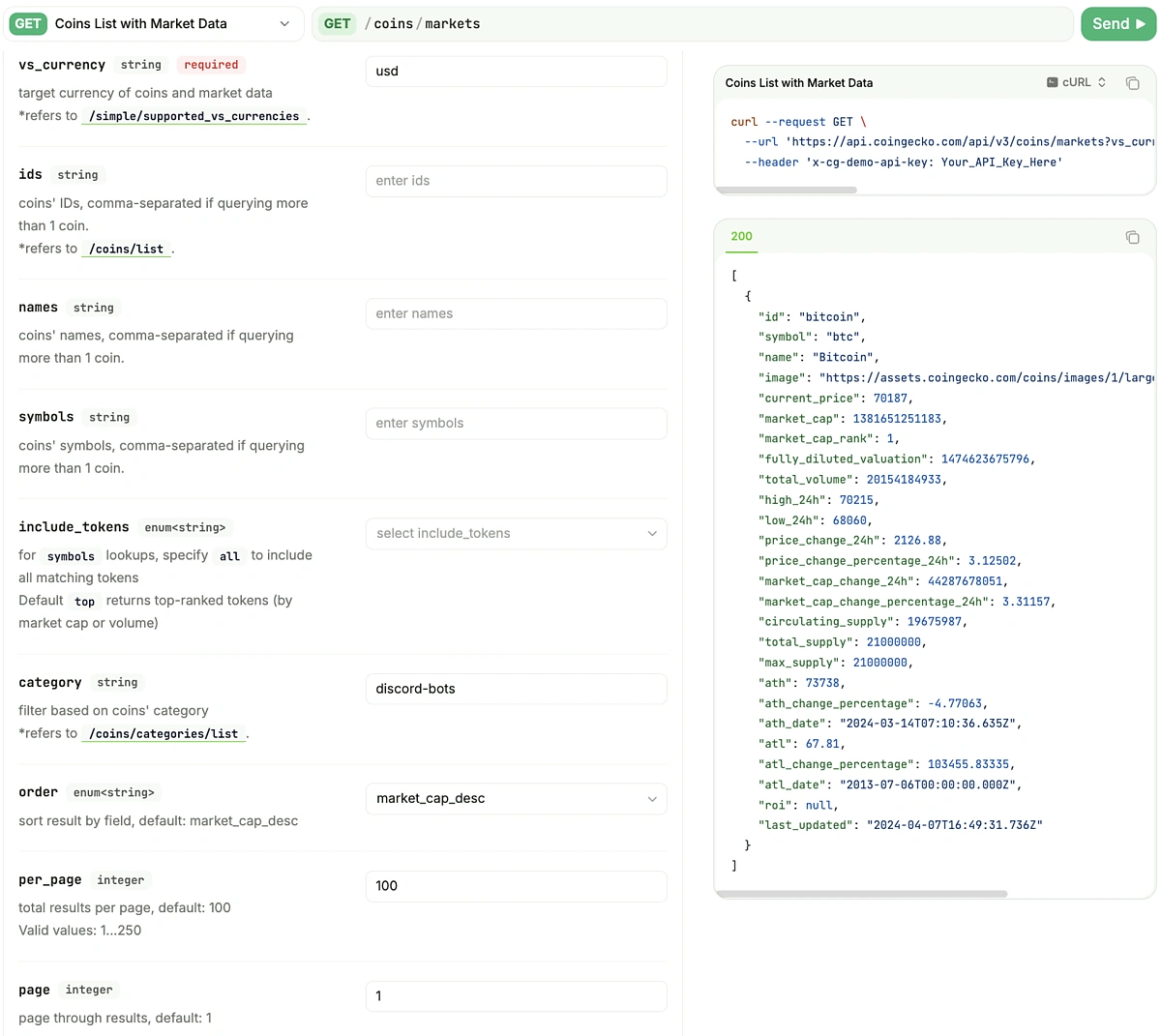
Your Request URL will look like this:
https://api.coingecko.com/api/v3/coins/markets?vs_currency=usd&category=discord-bots&order=market_cap_desc&per_page=100&page=1&sparkline=true&price_change_percentage=1h%2C24h%2C7d&locale=en&precision=full&x_cg_demo_api_key=YOUR_API_KEY
For Paid API users:
https://pro-api.coingecko.com/api/v3/coins/markets?vs_currency=usd&category=discord-bots&order=market_cap_desc&per_page=100&page=1&sparkline=true&price_change_percentage=1h%2C24h%2C7d&locale=en&precision=full&x_cg_pro_api_key=YOUR_API_KEY
All cryptocurrencies in that category will populate in your sheet:

Importing Total Crypto Market Cap Data
The /global/market_cap_chart endpoint returns historical global market cap and volume data. This endpoint is exclusive to Paid API subscribers.
The data granularity adjusts automatically:
- 1 day from now = hourly intervals
- 2+ days = daily intervals (00:00 UTC)
Here's the Request URL for 14 days of data:
https://pro-api.coingecko.com/api/v3/global/market_cap_chart?days=14&x_cg_pro_api_key=YOUR_API_KEY
Set the report style to grid before running:

The output will include Market Cap and Volume columns:

Use the spreadsheet formulas from earlier to clean up the data:

Demo API users can use the /global endpoint for current market cap data, but historical data requires a Paid API plan. Learn more about Crypto Global Market Data.
How to Refresh Your Crypto Data
Crypto prices change constantly, so you'll want to refresh your data regularly. Here's how to do it for each method.
Refreshing CoinGecko Add-on Data
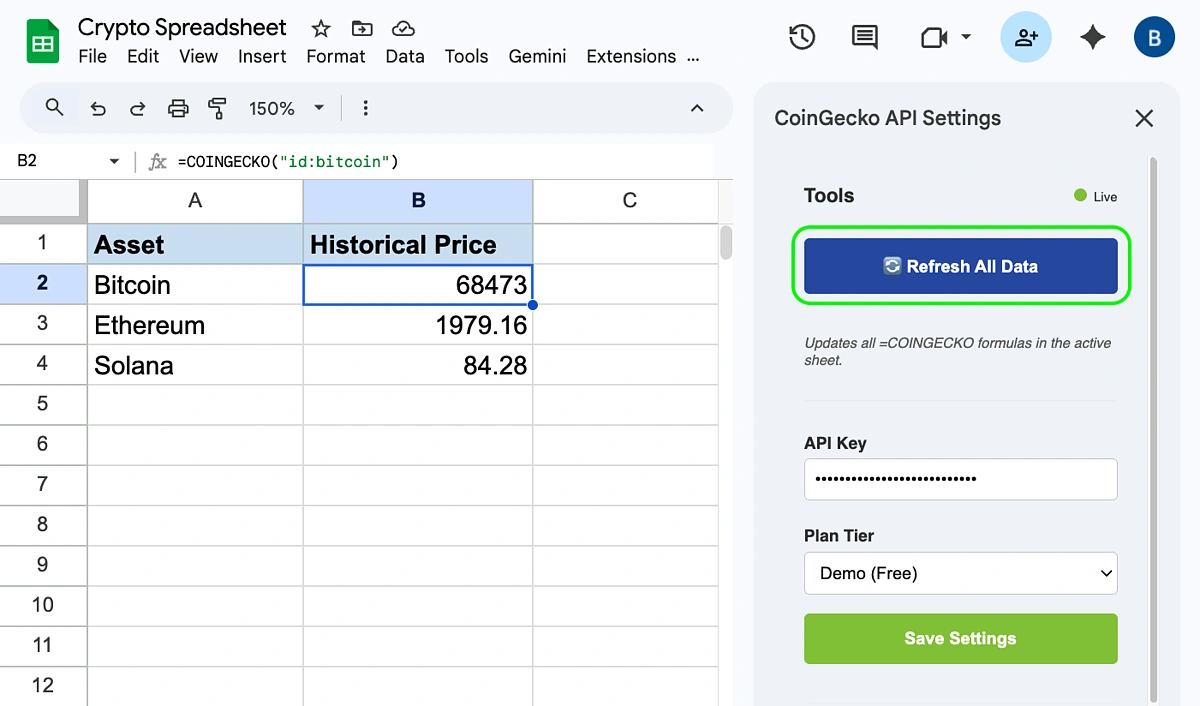
Google Sheets caches formula results for 1-2 hours by default. To force an immediate refresh:
- Go to Extensions > CoinGecko
- Click Refresh All Data
This updates every =COINGECKO() formula in your active sheet.

Alternatively, you can also refresh all the data by accessing the "Settings & API Key" side panel.
Refreshing API Connector Data
For data pulled via API Connector, you have two options:
Manual Refresh: Go to Extensions > API Connector > Refresh All Now.

Automatic Refresh: Click the Schedule tab in API Connector to set up automatic refreshes at intervals (hourly, daily, weekly, etc.).

Using the GOOGLEFINANCE Formula (Very Limited)
Google Sheets has a built-in GOOGLEFINANCE formula, but it has significant limitations for crypto. We recommend the CoinGecko add-on instead for most use cases.
GOOGLE FINANCE Function Limitations
Beyond BTC, ETH, and the top 10 cryptocurrencies, it does not support most altcoins and will result in an error. Unfortunately, Google Finance does not currently have a detailed or comprehensive list of all supported crypto tickers for use in the function, like it does for traditional stocks.
Additionally, historical data cannot be downloaded or accessed, and trying to do so will result in an error. Finally, also note that GOOGLEFINANCE is only available in English. For more info, refer to Google's Docs Editors page.
How to Use GOOGLEFINANCE for BTC and ETH
To fetch the Bitcoin price in USD:
=GOOGLEFINANCE("CURRENCY:BTCUSD")
For Ethereum in Singapore dollars:
=GOOGLEFINANCE("CURRENCY:ETHSGD")
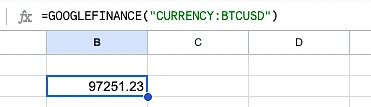
For more details, see Google's documentation.
Troubleshooting: Error Code 429 (Rate Limit Exceeded)
If you see error code 429, it means you've hit rate limits. This can happen because Google Sheets uses shared servers, so multiple users share the same API call limits.

Two solutions:
- Sign up for a free Demo API key to get dedicated rate limits
- Subscribe to a Paid API plan for higher limits and additional features
With keyed authentication, CoinGecko's servers handle your requests directly, bypassing Google Sheets' shared rate limits.

Avoiding Unexpected Overages
Worried about exceeding your plan limits? Set up a call consumption alert in your developer dashboard:

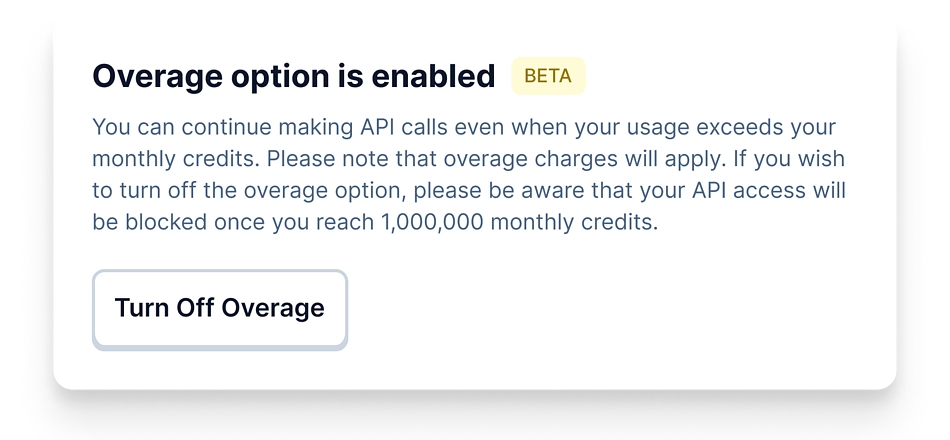
Paid subscribers can also hard-cap overages. When enabled, API usage won't exceed your monthly credit threshold:
Looking for similar guides? Check out our tutorial on building a crypto portfolio tracker for the top 500 coins using ImportJSON, or explore our library of crypto spreadsheet templates.






 Or check it out in the app stores