



 Make us preferred on Google
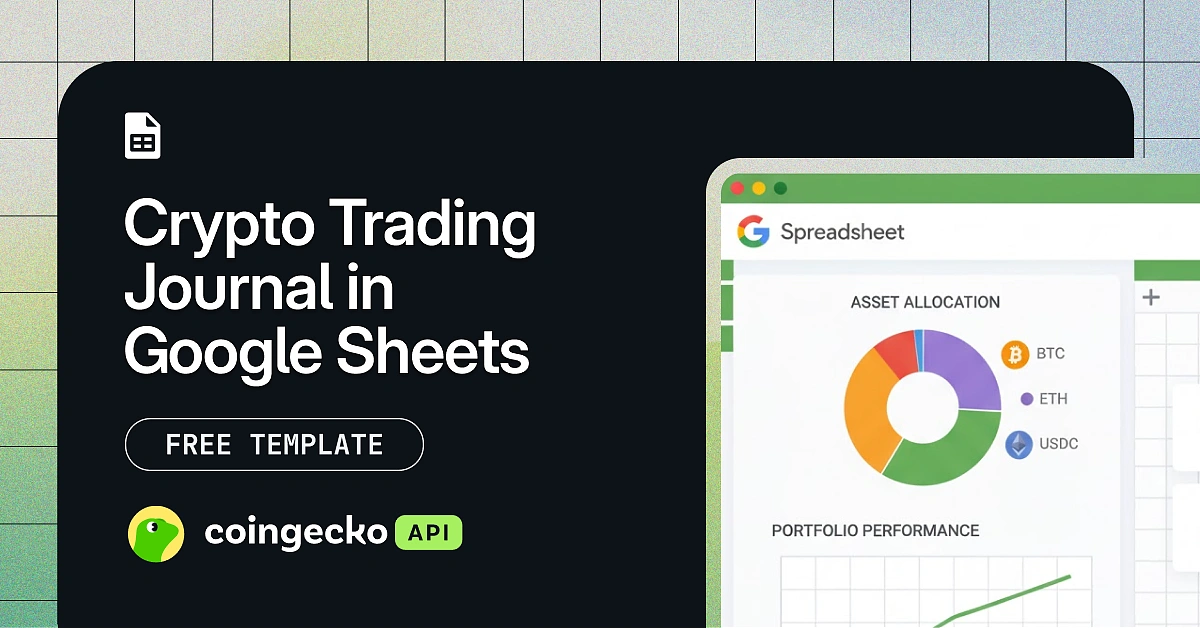
A crypto trading journal is essential for any serious trader or investor. It helps you stay organized, learn from past trades, and refine your strategy. One of the best ways to maintain one is using Google Sheets, as it's easily accessible and customizable. This free crypto trading journal Google Sheets template is designed to help you get started. It automatically tracks your trades, calculates profit and loss (PnL), and analyzes your performance in real-timeusing live crypto data powered by the CoinGecko API. Whether you’re trading Bitcoin, stablecoins, or on-chain tokens, the template gives you a clean, visual way to measure your trading results, identify patterns, and refine your strategy.
What This Free Template Offers
-
Real-time data updates powered by the CoinGecko Google Sheets Add-on.
-
PnL tracking, showing both realized and unrealized performance.
-
Dynamic dashboards to monitor your portfolio growth and win rate.
-
Extensive token support, covering over 17 million+ tokens from 1,700+ exchanges and 250+ networks via CoinGecko and GeckoTerminal data integration.
To get started and follow along with the setup steps, you can make a copy of the free Google Sheets template using the download link at the end of this article.
Prerequisites
Before you start, ensure the following requirements are met to use the template effectively:
-
A CoinGecko API key:
A CoinGecko API key is required to fetch live crypto prices. The free Demo API key is sufficient to get started, while a Pro plan offers higher rate limits for more frequent data refreshes. You can follow our guide to get your free Demo API key. -
A Google Account:
You’ll need a Google account to open, copy, and use the template in Google Sheets. This allows you to save your own version and enable Apps Script for live data connections. -
CoinGecko Google Sheets Add-on:
This template uses the official CoinGecko Google Sheets add-on to fetch live and historical crypto prices directly into your spreadsheet using the=COINGECKO()function.
How to Use the Crypto Trading Journal Google Sheets Template
This section provides a step-by-step guide on how to set up the template. Follow these instructions to install the CoinGecko add-on, configure your connection, customize your coin list, and log your first trade.
Setting up the CoinGecko Add-on
First, connect the template to the CoinGecko Google Sheets add-on to enable live and historical price data within the spreadsheet. To get started, install the add-on and configure your API credentials (Subscription Level and API Key) by following the setup guide.
Once configured, all =COINGECKO() formulas across the template will automatically fetch the required data. You don’t need to modify any formulas or configure scripts manually.
Refreshing Crypto Price Data
Now that the CoinGecko add-on is configured, your data will be fetched automatically through the =COINGECKO() formulas across the template, allowing you to retrieve crypto data directly (e.g., =COINGECKO("id:bitcoin") for individual tokens) without any manual setup.
However, Google Sheets may cache results for a short period of time. If you need the most up-to-date prices, you can manually refresh all data in your sheet. Keep in mind that more frequent refreshes will consume your API call credits faster. If you run into rate limits, consider upgrading to a paid API plan for higher call credits and rate limits.
Once the add-on status is Live, you can start customising the template by adding the tokens you want to track in the following section.

Adding Coins to the Template
The template tracks the top 1000 cryptocurrencies by market cap by default using the =COINGECKO("top:1000") function. To track other assets, such as specific on-chain tokens, you can add them manually in the Add Coins sheet. The information required depends on whether the asset is listed on CoinGecko or is an on-chain token tracked on GeckoTerminal.
-
For Coins found on CoinGecko:
Set the Source to CoinGecko and enter its API ID. You can find the API ID on any individual coin page on the CoinGecko website.

-
For Onchain Tokens:
Set the Source to GeckoTerminal, select the Network ID (for example, bsc for BNB Chain), enter the Token Name and Token Contract Address. To find the Network ID and Token Contract Address, head to the individual token page on GeckoTerminal-
Name (On-Chain) can be found in the token info page.
-
The Network ID is found in the URL path (e.g., bsc in https://www.geckoterminal.com/bsc/pools/0xaead6bd31dd66eb3a6216aaf271d0e661585b0b1)
-
Token Contract Address for the base token is listed in the pool details.

-
After adding assets, the template automatically fetches the required data using the =COINGECKO() formulas.
If you need to update prices instantly, open the CoinGecko sidebar and click “Refresh All Data” to force-refresh all values, as Google Sheets may cache results temporarily.
Your newly added assets will appear in the Available Coins sheet, starting from row 1002, directly below the default Top 1000 list. Once added, you only need to register a coin once for it to remain available for selection in your Staking Log. If a coin doesn’t appear, verify the Source, CoinGecko ID, Network ID, and Token Contract Address, then refresh the data.
Logging Your Trades in the Trading Journal Sheet
Once your coins are added, you can start recording your trades in the Trading Journal Sheet. This is where you log every buy or sell to track your performance and portfolio value accurately.

To customize the dropdown options for trading categories, navigate to column “AC” in the Trading Journal sheet and edit the reference list. Using categories helps you analyze which trading strategies (e.g., 'Scalping', 'Swing Trade', 'HODL') are most profitable over time.
Analyzing Trades in the Dashboard
Once your trades are logged, head to the Portfolio Dashboard and Asset Analysis sheets to review your performance. All charts and summary tables automatically update whenever new trades are added or when live market data refreshes. The dashboards will automatically recalculate and display your most recent PnL, portfolio distribution, and trading performance metrics.
Portfolio Dashboard Sheet
This sheet provides a comprehensive overview of your trading portfolio and is split into two sections:
-
Portfolio Overview: Provides a snapshot of your overall portfolio health. It combines your realized profits, open position values, and asset allocations to show how your balance changes over time and where your capital is distributed across different coins.
-
Balance Overview: Portfolio Trend based on Realised PnL and Position values.

-
Current Holding’s Distribution: Portfolio distribution based on open positions’ values in USD.

-
Traded Coins Analytics: A summary table listing all open and closed positions. Each coin is sorted by name with details such as position value, position size, total trades, realized and unrealized PnL, and current trade status.

-
-
Performance Insights: Highlights overall trading performance.
-
A summary table showing total trades, win rate, average gain, average loss, and maximum drawdown.

-
Balance Breakdown: Displays how each coin has contributed to your portfolio through realized profits and open position values.

-
Trades Distribution: Shows the frequency of trades by category, helping you understand which trading styles you use most often.

-
Asset Analysis Sheet
This sheet allows you to perform a deep-dive analysis on a single asset. In cell “A2”, select a coin from the dropdown menu to populate the dashboard with its specific performance data.
-
Individual Asset Analysis
A breakdown on your performance for a specified asset.-
Total PnL: Combines realized and unrealized profit or loss for the selected coin. It reflects your overall performance from all trades involving that asset.

-
Profit by Trading Style: Breaks down profits and losses based on your chosen trade categories. This helps identify which strategies are performing best.

-
Trade Breakdown: Lists every trade for the selected coin, including details like date, price, quantity, and PnL. The final column is for post-trade reflections, allowing you to add notes on what went right or wrong to inform future decisions.

-
-
Asset Performance: Shows live metrics including the asset’s current price, market cap, and 24-hour change in market cap.

These dashboards provide both a high-level portfolio overview and in-depth performance insights for each asset, making it easy to track progress and refine your trading approach.
Creating a Crypto Trading Journal in Google Sheets
Creating a crypto trading journal in Google Sheets involves three main components:
a live data source for fetching crypto prices, a structured log for recording trades, and a dashboard for analyzing performance.
This template integrates all three seamlessly into one connected system powered by the CoinGecko Google Sheets add-on, allowing you to fetch live market data directly using simple =COINGECKO() formulas:
-
Live Crypto Market Data
Live prices and market data are fetched directly using the CoinGecko Google Sheets add-on. By using the=COINGECKO()function, the template retrieves real-time data for a wide range of crypto assets without requiring any custom scripts or manual setup. -
Google Sheets Formulas and Tables
Use built-in Sheets formulas to calculate all key trading metrics such as position value, realized and unrealized PnL, and total portfolio balance. All calculations update dynamically whenever new trades are logged or when market data refreshes. -
Structured Trade Logging
A dedicated Trading Journal sheet lets you record every transaction with clear fields for date, coin, buy/sell, quantity, price, category, and notes. This structured log forms the foundation for all calculations and dashboard visuals. -
Interactive Dashboards
Use pivot tables and charts to create dashboards that summarize performance, asset allocation, and trading patterns visually for quick insights.
How to Get Live Crypto Data in Google Sheets
You can get real-time crypto data in Google Sheets using two different approaches, depending on your preferred level of control and customization.
Option 1 (Recommended): Using the CoinGecko Add-on
The simplest way is to use the official CoinGecko Google Sheets add-on with the =COINGECKO() function. This method is fully integrated into the template and allows you to fetch live crypto prices directly, including on-chain tokens (e.g.,=COINGECKO("base:0x1111111111166b7fe7bd91427724b487980afc69")), without any coding or manual setup.
Option 2 (Advanced): Using Apps Script
For users who require more flexibility, you can fetch data directly from the CoinGecko API using Google Apps Script. This approach gives you fine-grained control over the request parameters, such as specifying dates, currencies, and endpoints, as well as how the returned data is structured and used within your sheet. This involves creating custom functions (such as ImportJSON) to call specific API endpoints and retrieve market data into your sheet.
Step 1: Create an ImportJSON Script
First, create the main function that will fetch and parse the data.
Open your Google Sheet and navigate to ‘Extensions’ and select ‘Apps Script’ - a new tab will appear.
On the left panel, select ‘< > Editor’ and add a new script using the ‘+’ button. Copy and paste the following importJSON script, and save the script as ‘ImportJSON’. This importJSON script is a versatile one that will allow you to import data in many different ways.
Step 2: Create the autoRefresh Script
Next, create a helper script that will allow the data to refresh automatically.
Create a second Apps Script by clicking on the ‘+’ button. Copy the code below and paste it into the script editor, saving it as ‘autoRefresh’ – this will allow your sheet to automatically refresh at fixed intervals.
Step 3: Call the Function in Your Sheet
With the scripts saved, you can now use the =IMPORTJSON() function in any cell:
-
Construct your CoinGecko API request URL.
-
Enter the formula into your desired cell, replacing the placeholder URL with your own.
For example, to get market data for the top 100 coins, your formula would look like this:
=ImportJSON("https://api.coingecko.com/api/v3/coins/marketsvs_currency=usd&order=market_cap_desc&per_page=250&page=1&sparkline=false&price_change_percentage=24h&x_cg_demo_api_key=" & 'Read Me'!$B$20, "/id,/name,/current_price,/market_cap,/market_cap_rank,/price_change_percentage_24h,/market_cap_change_24h,/market_cap_change_percentage_24h,/price_change_percentage_24h_in_currency", "noTruncate," & 'Read Me'!$A$25)This method is modular and powerful, as the =IMPORTJSON() formula can be easily replicated across any cell with different API endpoints. For a more detailed step-by-step guide, read our article on importing crypto prices into Google Sheets.
The crypto trading journal Google Sheets template is powered by a combination of real-time data from the following endpoints:
-
/coins/markets
Fetches the latest prices and market caps of the top 250 coins.
-
/onchain/networks/{network}/tokens/{address}
Fetches the latest prices and market data of a specified token contract address on a specified network.
Creating a Crypto Trading Log Sheet in Google Sheets
To calculate your portfolio performance, you first need a record of every trade. Creating a trading log sheet lets you record all buy and sell transactions in one place and automatically calculates profit, loss, and position value using live market data.
Each log entry includes:
-
Date of the trade
-
Coin name
-
Action (Buy or Sell)
-
Quantity (number of tokens)
-
Average entry/exit price (USD)
-
Category (speculation, momentum, news-based, etc.)
-
Notes

Creating a Dashboard for Trade Analysis in Google Sheets
After logging your trades, the next step is to create a dashboard to analyze your performance. A dashboard in Google Sheets uses formulas to calculate key metrics and charts to visualize your data, providing a clear overview of your trading activity and portfolio growth.
To build an effective analysis dashboard, you will need to implement several core Google Sheets functions and calculation formulas:
Essentials Google Sheets Functions
-
SUMIFS: Calculates totals based on specific conditions, such as the total position value for a specific coin or your total realized profit and loss. -
AVERAGEIFS: Finds the average entry price for a holding or the average gain/loss across your winning and losing trades. -
COUNTIFS:Counts the number of trades that meet given criteria — essential for calculating metrics like your win rate or total trades logged. -
INDEX + MATCH: Used to dynamically reference live market data. This combination looks up the current price of each coin from the Available Coins sheet and links it to your trade records for real-time updates. -
FILTER + IF: Used to conditionally display relevant data, such as trades filtered by coin or date range for the Asset Analysis section.
Calculation Logic
With the functions above, you can compute the primary metrics needed to assess your performance:
-
Realised PnL: Taking the difference between the sell price and the average buy cost before the trade, then multiplying by the quantity sold.
-
Unrealised PnL: The difference between the current live price and your buy price, multiplied by the quantity still held.
-
Win Rate: The number of winning trades divided by total trades.
-
Max Drawdown: Largest loss amount among all trades when sorted by PnL.
-
Portfolio Value: The current value is a sum of your cash balance (from realized profits) and the market value of all your open positions.
These metrics can then be used to power dashboard charts and tables, giving you an immediate visual summary of your trading performance and portfolio health.
Common Issues & Fixes
If you encounter errors while using the trading journal and are unsure what’s causing the issue, navigate to ‘Extensions’ > ‘CoinGecko’ > ‘View Error Logs’ to access the debug logs and view the returned error code and message.
Once you’ve identified the issue, here are a few common problems along with quick ways to fix them.
-
API Rate Limit (Error 429)
This happens when the free CoinGecko Demo API hits its request limit. Wait a few minutes before refreshing again, or switch to a Pro API key for uninterrupted updates.
If you receive other error codes, refer to the full list of CoinGecko API status codes to troubleshoot them. -
Missing or Incorrect Coin Data
If a coin’s data doesn’t appear after refreshing:-
Check that the Coin ID or Contract Address in the AddCoins sheet is correct.
-
Make sure the Source and Network ID fields are filled in properly.
-
Refresh again after fixing the entry.
-
-
API Key or Connection Issues
If your API key isn’t connecting or you’re seeing Error 401 or Error 403, try reconnecting your CoinGecko API key within the add-on settings and ensure your subscription level is correctly configured. -
Data Not Updating or Showing Older Prices
Google Sheets may cache formula results temporarily. To refresh your data, open the CoinGecko sidebar and click “Refresh All Data” to force-update all=COINGECKO()formulas.
For more detailed troubleshooting steps and a list of common errors, refer to the Error Debugging Guide.
Further Enhancements
You can further enhance this crypto trading journal spreadsheet to better suit your analysis style. Here are a few ideas that leverage other CoinGecko API endpoints:
-
Fetch Historical Price Data
Pull Historical Prices for specific coins for more in-depth performance analysis. You can follow our guide on how to pull crypto historical data in Google Sheets and visualize long-term trends. -
Add OHLC (Open, High, Low, Close) Data
If you want more granular price insights, consider fetching OHLC data for each coin. Check out our step-by-step guide on how to pull crypto OHLC data into Google Sheets. -
Add a Crypto Portfolio Tracker
This trading journal shares many core components with a crypto portfolio tracker. You can extend its functionality to monitor holdings across multiple wallets or exchanges by following our guide on how to create a crypto portfolio tracker in Google Sheets. -
Create a Crypto Exit Strategy Planner
If you want to plan your trade exits more strategically, consider adding profit-taking and stop-loss levels for each position. Check out our step-by-step guide on how to build a crypto exit strategy planner in Google Sheets.
Conclusion
A trading journal is one of the most effective tools for improving discipline and decision-making as a crypto trader. This free Crypto Trading Journal Google Sheets Template, powered by the CoinGecko API, provides a simple yet powerful way to log trades, and analyze your performance. Because it's built in Google Sheets, your journal is accessible online across all your devices, ensuring you can track your trades anytime and anywhere.
The integrated dashboard gives you a clear snapshot of your portfolio’s growth and performance trends, while the Asset Analysis sheet helps pinpoint which trading strategies and coins deliver the best results over time.
If you require more frequent data updates or higher API rate limits for advanced analysis, consider subscribing to a paid API plan to unlock the full potential of your trading journal.









 Or check it out in the app stores